PDF passwords: keeping people out, or just limiting what they can do
A PDF can actually carry two separate passwords, and most people have only ever dealt with one of them.
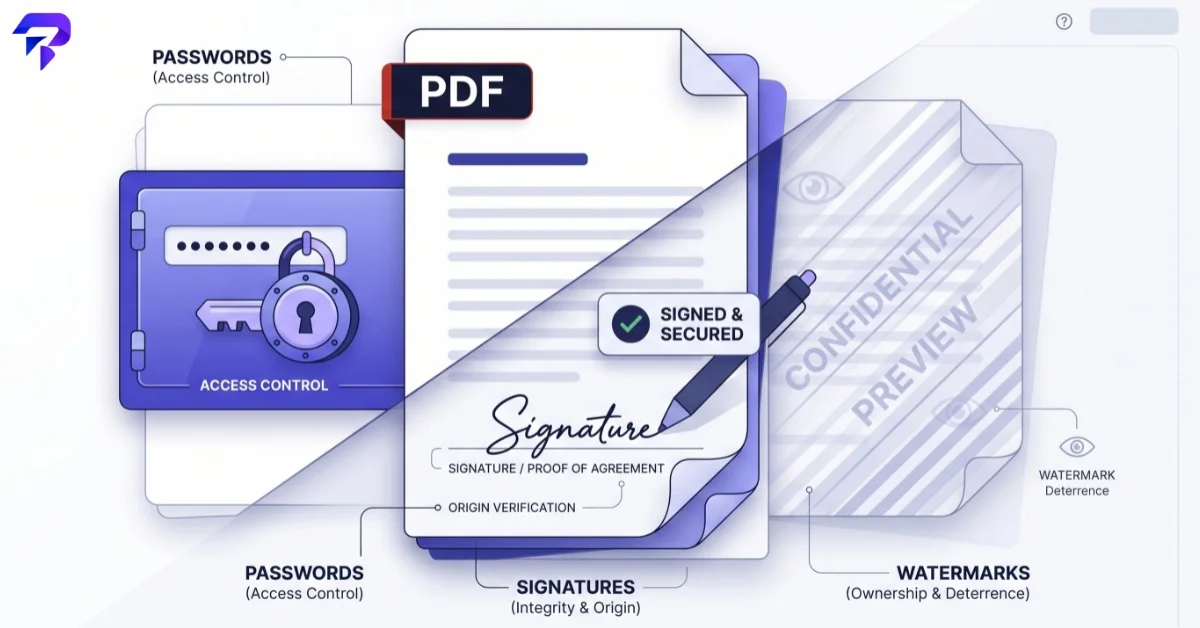
The user password (sometimes called the “open password”) is the one you’re used to — without it, the file won’t open at all, in any reader. The owner password (or “permissions password”) is different: the file opens without it, but it restricts specific actions — printing, copying text, editing, adding comments — until that password is entered.
Here’s the part that surprises people: permissions-only restrictions aren’t real security. They’re enforced by the PDF reader respecting a set of flags stored in the file, and plenty of tools simply ignore those flags and extract the content anyway. If you need to stop someone from opening a file, you need a user password. If you’ve lost access to a PDF you’re authorized to open, a PDF password removal tool can strip that lock in your browser — more on when that’s appropriate below. If you’re just trying to discourage casual editing from an otherwise cooperative recipient, the owner password is fine — just don’t rely on it to protect anything sensitive.
The encryption behind a genuine open-password lock has changed a lot over the PDF format’s history. Early PDFs used RC4, a stream cipher that’s since been broken and dropped from modern security standards entirely. AES-128 arrived in PDF 1.6, and real AES-256 encryption followed — first in an early, flawed implementation, then properly fixed in the PDF 2.0 specification (2017), which added a per-file random salt to the password-derivation step. That fix matters more than it sounds: without a random salt, an attacker with the encrypted file can precompute password guesses far faster. A PDF locked with PDF 2.0’s AES-256 and a reasonably long password is genuinely hard to brute-force; an older RC4-locked file is not.
None of this changes what a password lock is for, though. It protects the file at rest — while it’s sitting in someone’s downloads folder or attached to an email. It does nothing once someone with the password decides to forward the unlocked content elsewhere.
Signing a PDF: proving intent, not protecting content
An electronic signature on a PDF isn’t a security feature in the password sense at all — it’s evidence. Specifically, it’s evidence that a specific person reviewed a specific version of a document and agreed to it.
In the US, the E-SIGN Act (2000) and the state-level Uniform Electronic Transactions Act (UETA, adopted by 47 states) both make electronic signatures just as legally binding as a handwritten one, provided a few conditions hold: both parties intended to sign, both consented to doing business electronically, the signature is clearly associated with the record it applies to, and the signed document can be retained and reproduced later. Neither law mandates a specific technology — a typed name, a drawn signature, or a cryptographic digital signature can all satisfy the legal requirement, as long as intent and association are clear.
That last part is why a genuinely useful e-signature tool does more than drop an image of a signature onto a page. It should timestamp the signing event and, ideally, lock the signed content so any later edit is detectable — otherwise “proof that you agreed to this document” quietly becomes “proof that you agreed to a document that once looked like this.” A signature doesn’t encrypt anything and doesn’t restrict what a reader can do with the file; it just adds a verifiable record of agreement on top of whatever access controls (or lack of them) the file already has.
Watermarks: visibility, not protection
A watermark — a name, date, or “DRAFT”/”CONFIDENTIAL” stamp overlaid across the page — doesn’t stop anyone from copying, editing, or redistributing a PDF. What it does is make the source and status of a copy obvious wherever it ends up. Adding one is a quick job with a dedicated watermark tool, and it’s a genuinely useful thing to have: it deters casual leaks (most people won’t quietly forward a document that visibly says who it was sent to), and it makes it immediately clear whether a given copy is a draft, an internal-only version, or the final approved one.
Watermarking is also the only one of these three that’s purely additive — it doesn’t gate access or require a password to remove. That makes it the right tool when the goal is tracking and light deterrence rather than actual access control, and the wrong tool if you think it’s doing any real protective work on its own.
Putting them together
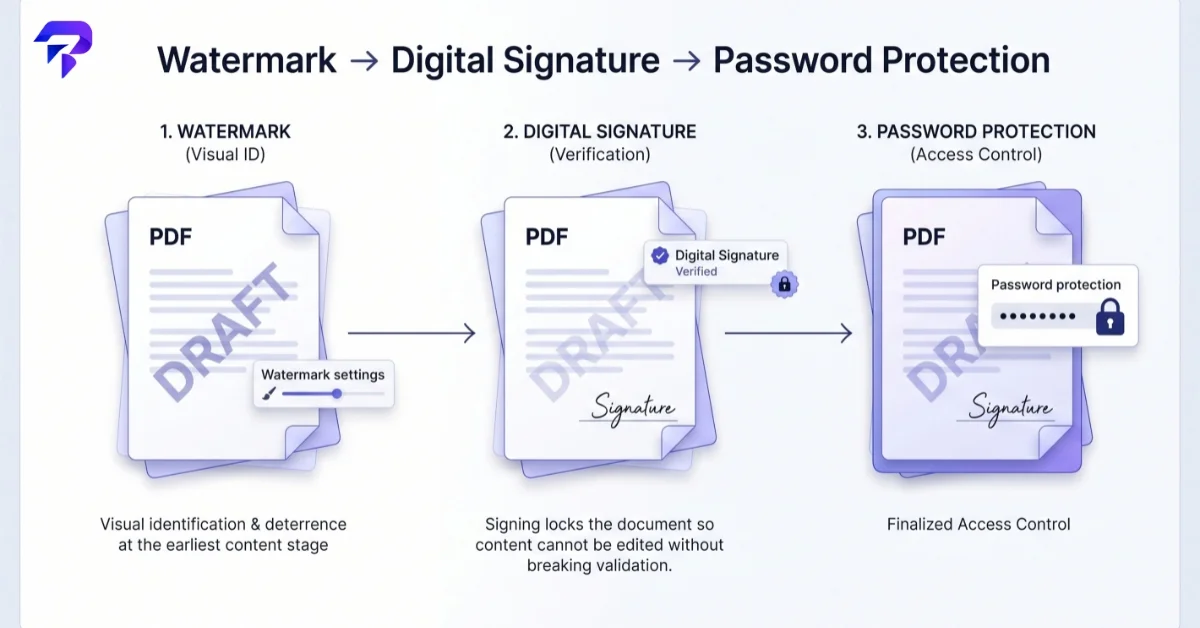
These three tools solve different problems, and a document often needs more than one at once. A contract might be watermarked “DRAFT” while it’s circulating for review, digitally signed once everyone agrees, and then password-protected before it’s stored or emailed to a third party — the same point in the workflow where you might also want to compress the file or merge it with related documents before sending. Used in the wrong order — say, watermarking after signing — you risk invalidating the signature’s tamper-detection, since the file content changes after the signature was applied. If you’re combining all three, sign last.
One more practical note: if you’re removing a password from a PDF, only do it on a file you own or have explicit permission to modify — a forgotten password on your own document is a reasonable use case; bypassing protection on someone else’s file is not, regardless of what tools make technically possible.
If you also need to add page numbers or pull specific pages out of a longer PDF before sending it, that’s a separate — and separately free — step; see our guide to adding page numbers and extracting PDF pages.
Frequently Asked Questions
What’s the actual difference between a PDF password and PDF permissions?
A password (specifically a “user” or “open” password) blocks the file from opening at all without it. Permissions (set with an “owner” password) let the file open freely but try to restrict actions like printing or copying — enforced only if the PDF reader respects those flags, which not all tools do.
Is an electronically signed PDF legally binding?
In the US, yes, under the E-SIGN Act and UETA, as long as both parties intended to sign and consented to doing business electronically, the signature is tied to the specific document, and the signed file can be retained. No specific signing technology is required by either law.
Does a watermark stop someone from copying my PDF?
No. A watermark is visual only — it doesn’t restrict copying, editing, or printing. It deters casual redistribution by making the source and status of a document visible, but it provides no actual access control.
What encryption does a real PDF password use?
Modern PDFs (PDF 2.0, from 2017 onward) use AES-256 encryption with a per-file random salt in the password-derivation step, which is significantly harder to brute-force than older RC4 or early AES-256 implementations that lacked that safeguard.
Can I remove a password from a PDF if I forgot it?
Only ethically and legally if it’s your own file or one you have explicit permission to modify. A browser-based unlock tool can remove a password lock from a file you’re authorized to access, but the same capability shouldn’t be used on documents you don’t have rights to.
The Bottom Line
A password restricts access, a signature proves intent, and a watermark only affects visibility — treating any one of them as a substitute for the others is how files end up either over- or under-protected. Match the protection to what you’re actually trying to prevent, and combine them when a document genuinely needs more than one layer.