Why PDFs get large in the first place
Text in a PDF is stored as vector instructions and font references — it’s already extremely compact, which is why a 40-page text contract might be 200KB. What actually bloats a PDF is almost always:
- Embedded images at full resolution (a scanned page saved at 600 DPI when 150-200 DPI would look identical on screen)
- Duplicate embedded fonts or unused font subsets
- Uncompressed or poorly compressed images carried over from the original source document
- Metadata and unused objects left over from editing history
Understanding this matters because it tells you exactly what compression is actually doing: it’s not degrading your document broadly, it’s specifically re-processing the images inside it.
How compression actually preserves quality
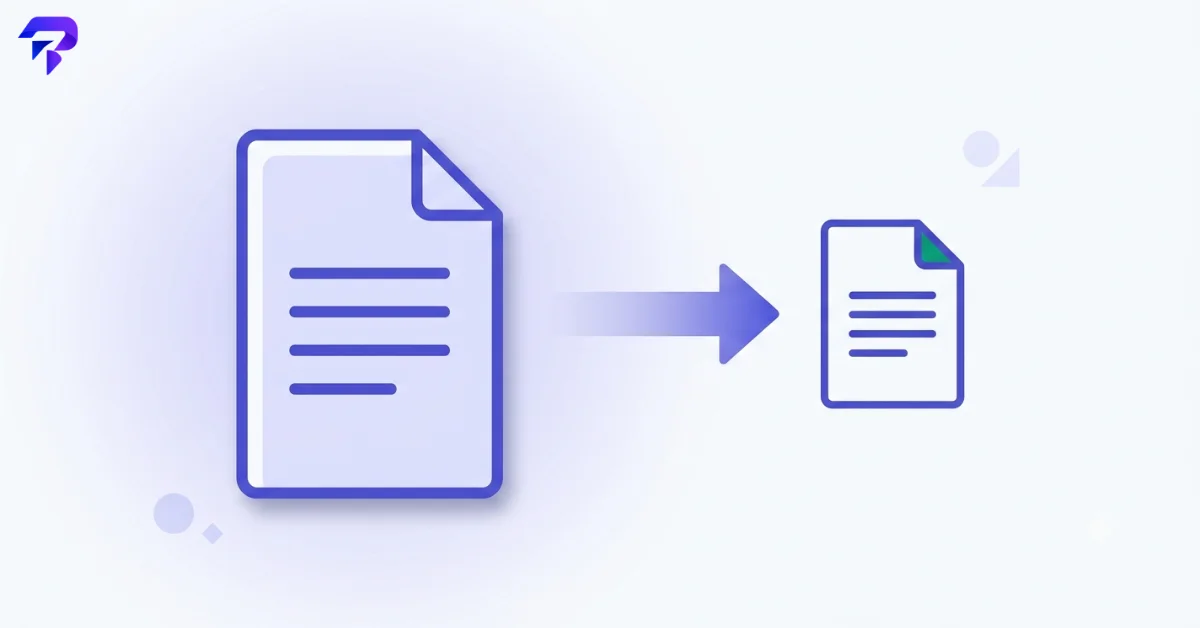
Good PDF compression tools work by finding the resolution/quality sweet spot for images — high enough that there’s no visible difference on screen or in print, low enough that file size drops significantly.
The actual risk of visible quality loss comes from:
- Over-aggressive settings that push image quality below a readable threshold (visible blur or blockiness, especially in scanned text)
- Recompressing an already-compressed file repeatedly, which can compound quality loss over multiple passes
- Poor compression algorithms that don’t intelligently balance size against visual quality
How to compress a PDF the right way
- Start with a moderate compression setting, not the most aggressive one available. Most tools offer a tiered choice — the recommended tier is built to hold the quality/size balance that works for most documents.
- Check the output before you send it, especially for scanned documents. Zoom in on a paragraph of small text; if it’s still crisp, you’re in the safe zone.
- Only step up to more aggressive compression if size is still a hard blocker — most email systems and upload forms have generous enough limits that moderate compression clears the bar.
- If the PDF is mostly text with only a couple of images, you often don’t need aggressive image compression at all.
Does it matter whether the tool uploads your file?
For compression specifically, this matters for the same reason it matters for any PDF operation: if the document contains anything sensitive, a browser-based tool means the file never leaves your device during the process (see Are Online File Converters Safe?). ToolPremier’s PDF Compress tool runs entirely client-side, so a signed contract or financial statement you’re compressing for email never touches a server. If you also need to combine pages first or shrink a batch, ToolPremier’s PDF Merge and PDF Split tools work the same way.

PDF/A and archival compression: a different goal entirely
If you’re compressing a document for long-term archiving rather than sending it to one person, the calculus changes. PDF/A is the ISO-standardized format built specifically for that use case (ISO 19005), and it requires every font, color profile, and referenced resource to be fully embedded in the file so it renders identically decades from now, regardless of what software opens it. That requirement is also why PDF/A forbids certain things outright: encryption isn’t allowed in any PDF/A version, and LZW compression is prohibited for intellectual-property reasons (JPEG 2000 compression is blocked in the original PDF/A-1 spec but permitted in the later PDF/A-2 and PDF/A-3 revisions).
The practical takeaway: if a document needs to stay PDF/A-compliant — common for legal records, government filings, and long-term business archives — don’t run it through aggressive general-purpose compression without checking the result still validates as PDF/A. Standard compression settings are built for “looks fine today,” not for the stricter self-contained requirements archival formats depend on.
Compressing a scanned PDF vs. a digitally-created one
The right compression approach depends heavily on how the PDF was made in the first place. A digitally-created PDF (exported from Word, Google Docs, or design software) stores its text as vector instructions, so compression only ever touches the embedded images — text stays sharp no matter how aggressive the setting.
A scanned PDF is different: every page is really just a photograph of a document, meaning what looks like “text” is actually image data that compression can degrade. This is where over-aggressive settings cause the most visible harm — blurring or blocky artifacts around small print that was already borderline-readable in the original scan. If a scanned document also needs to be searchable or copyable, that requires OCR (optical character recognition) rather than compression — ToolPremier’s Image to Text (OCR) tool extracts the underlying text so you have both a smaller file and a searchable one, rather than relying on compression alone to solve a problem it isn’t built for — see how OCR actually works and how accurate it is for the details. Once the file is compressed and ready to send, you may also want to lock, sign, or watermark it — see our breakdown of what PDF passwords, signatures, and watermarks each actually protect.
FAQ
Will compressing a PDF make my text blurry?
Almost never — text in a standard PDF is vector data, not an image. The exception is a scanned document where the “text” is actually a photo of text; overly aggressive compression can blur it.
How much smaller can I expect a PDF to get?
Highly variable — a text-only PDF might shrink only modestly, while an image-heavy scanned document can often shrink by 50-90% with no visible difference.
Is there a “best” compression level for every PDF?
No — it depends on the document’s content and intended use.
Can I compress a PDF multiple times to make it even smaller?
You can, but each additional pass risks compounding quality loss on the images, with diminishing size returns.
The bottom line
“Losing quality” from PDF compression is almost always about images, not text, and almost always about pushing the compression setting further than the document actually needs. Use a moderate setting, check the result, and only push harder if you have a specific size requirement to hit.