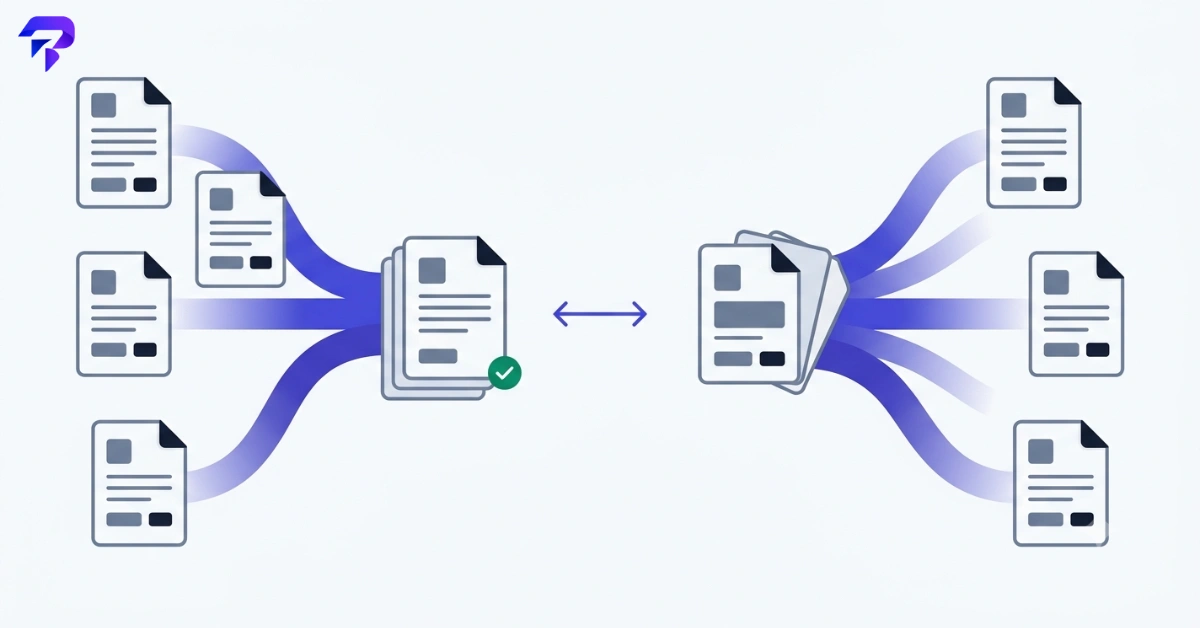
Quick answer: Merging combines multiple PDFs into one file, in whatever order you choose. Splitting does the opposite — it breaks one PDF into separate files, or pulls out specific pages while leaving the rest behind. Most document cleanup jobs (assembling a report, trimming a scanned packet down to the pages you actually need) use both operations, one after the other, and neither requires installing software or uploading anything if you use a browser-based tool.
Merge and split are two names for the same job: reorganizing a document
People usually search for these as separate problems, but they’re really the same problem approached from opposite directions. You have pages in the wrong file, or the wrong file has too many pages, and you need the final document to contain exactly what it should — no more, no less.
A few situations where each one applies:
- Merge when you have several PDFs that need to become one — separate invoices going to one client, individual chapter files becoming a single manuscript, scanned forms that arrived as separate uploads.
- Split when one PDF has too much in it — a 200-page scanned book you only need three chapters from, a signed contract bundle where you only need to send the signature page, a batch scan where every other page needs to become its own file.
- Both when you’re reorganizing — pull the pages you need out of three different source files, then merge those extracted pages into one clean document in the right order.
The tools themselves are simple on purpose — drag files in, arrange them, export. The part actually worth getting right is knowing which operation solves your specific problem, and in what order to run them, because doing it backward (merging first, then trying to remove pages from the combined file) usually takes more steps than doing it the other way around.
How to merge PDF files for free
Merging is the more mechanical of the two operations: you’re placing complete files, or files you’ve already trimmed down, next to each other in a specific order and saving the result as one document.
- Gather every file you want in the final document and check the page count of each so you have a rough sense of what the merged file will look like once it’s assembled.
- Upload or drag in the files in the order you want them to appear — most merge tools let you drag to reorder afterward, so don’t worry about getting the sequence perfect on the first pass.
- Confirm the order visually. A quick thumbnail check catches the most common merge mistake: two files swapped, or a cover page that ended up in the middle instead of the front.
- Merge and download. The result is a single PDF containing every page from every source file, in the order you set, saved as one file you can send or store.
ToolPremier’s Merge PDF tool does exactly this in the browser — no file ever leaves your device, which matters if any of the source documents are signed contracts, financial statements, or anything else you wouldn’t want sitting on a random server while it’s being processed.
How to split a PDF into pages (or extract just what you need)
Splitting covers two related but distinct jobs, and it’s worth knowing which one you’re actually doing before you start, since the settings you pick will differ:
- Splitting into pages breaks a PDF into individual page files, or into evenly sized chunks (every 5 pages, every 10 pages, and so on). Useful when a batch scanner dumped 50 pages into one file and each page — or each small group of pages — actually belongs to a different record.
- Extracting pages pulls out a specific page or page range and either leaves the rest of the document untouched as a separate file or discards it entirely. Useful when you need “just page 4” out of a 60-page report, or “pages 12 through 18” as their own standalone file.
The workflow for both looks similar:
- Open the PDF in a split tool and let it generate page thumbnails so you can see exactly what you’re working with before selecting anything.
- Select the pages or range you want — either the specific ones to extract, or the split points if you’re breaking the file into even chunks.
- Preview before you commit. Off-by-one errors are the most common mistake here (selecting pages 1-10 when you meant 1-11), so a quick thumbnail scan before finalizing saves a redo later.
- Split and download — you’ll get either one file per selection or a single trimmed-down PDF, depending on what you chose at the start.
ToolPremier’s Split PDF tool handles both page-range extraction and even splitting, and like the merge tool, it runs entirely in your browser rather than sending your document anywhere.
Merge vs. split at a glance
| Task | What it does | Typical use case |
|---|---|---|
| Merge PDF | Combines two or more PDFs into one file, in a set order | Assembling a report from separate sections, bundling invoices for one client |
| Split PDF (into pages) | Breaks one PDF into multiple smaller files | Separating a multi-record batch scan into individual documents |
| Extract pages | Pulls specific pages out, discarding or keeping the rest | Grabbing pages 12-18 from a 60-page report without the rest |
| Reorganize (merge + split) | Extract pages from several files, then merge the extracted pages into one | Building a final document from bits of three separate source PDFs |
Combining PDFs without losing quality
Merging doesn’t recompress or re-render the pages it combines — it’s placing existing page data into a new container, not converting anything. That means a merged PDF should look exactly as sharp as its source files, page for page, with no additional generation loss introduced by the merge step itself. If a merged file looks worse than the originals, the quality loss almost always happened earlier — a low-resolution scan going in, for instance — rather than during the merge.
Where file size does become a real concern is volume: merging ten scanned PDFs into one document adds up their file sizes, and a bundle that’s fine to view on screen individually can get too large to email or upload once it’s all combined into one file. If that happens after a merge, running the result through a tool like PDF Compressor brings the size down without touching the part of the document that actually needs to stay sharp — the text.
A practical reorganization workflow
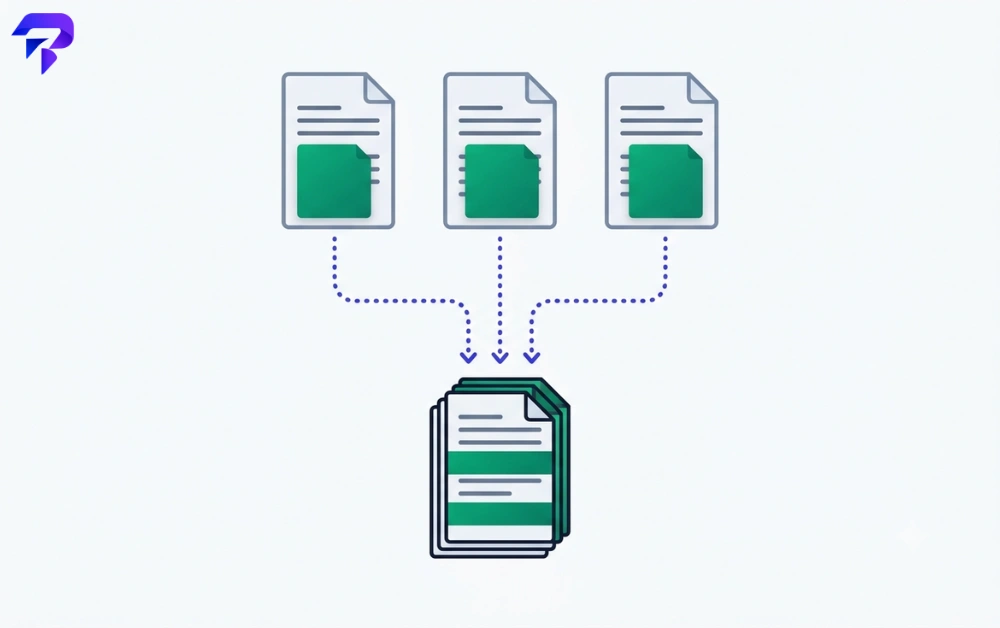
Here’s a scenario that comes up constantly: you’ve got a signed contract in one PDF, a scanned ID page in another, and a cover letter in a third, and you need to send all of it to a client as one clean document in a specific order.
- Extract only the ID page you need from the scan, if the source file has other pages you don’t want included in the final packet.
- Merge the cover letter, the contract, and the extracted ID page into a single file, dragging them into the order the recipient should actually read them in.
- Check the result page by page before sending — this is the step people skip, and it’s the one that catches a page that landed in the wrong spot or a duplicate that slipped in.
- Compress if needed, particularly if any of the source files were scans and the combined file is pushing past an email attachment limit.
None of these steps require touching a desktop app or installing anything. Doing them in a browser-based tool also means the contract and ID page — two documents you’d rather not upload to a random server — never actually leave your device at any point in the process.
Common mistakes to avoid
- Merging before checking page counts. If you’re not sure whether a source file has a blank page at the end or the beginning, check first — it’s easier to catch in a single file than after it’s buried in a 40-page merged document.
- Splitting on the wrong page number. PDF viewers sometimes number pages differently than the document itself does (a cover page might not count as “page 1” in the printed numbering). Go by the thumbnail position, not a printed page number in the corner.
- Forgetting file order matters. Files usually upload in the order you selected them, which isn’t always the order you want in the final document — always do the visual reorder check before exporting.
- Re-splitting an already-split file repeatedly. If you need several different cuts of the same document, work from the original each time rather than splitting a split, which just adds unnecessary steps.
Does it matter whether the tool uploads your file?
For merging and splitting specifically, yes, more than for a lot of other PDF tasks — because the documents people merge and split are disproportionately the sensitive ones: contracts, ID scans, tax forms, invoice bundles with client names and dollar amounts on them. A tool that processes files client-side, in the browser, never sends that document to a server in the first place, which removes the question of what happens to it after upload entirely. ToolPremier’s Merge PDF and Split PDF tools both work this way — the processing happens on your device, not on a remote server, and nothing is stored afterward. If you only need to pull out a handful of specific pages rather than split the whole document, see our guide to adding page numbers and extracting PDF pages instead.
FAQs
Can I merge PDFs that were created in different programs?
Yes. A PDF is a PDF regardless of what created it — Word, a scanner, another PDF editor — so merge tools don’t care about the source. The only thing that carries over unevenly is formatting quirks from the original file, which a merge won’t fix or introduce on its own.
Will splitting a PDF break links or bookmarks inside it?
Internal links and bookmarks that point to pages outside the split range won’t have anywhere to go, so they’ll typically stop working in that piece. Links to pages that stayed within the same split section usually still work as expected.
What’s the difference between splitting and extracting pages?
Splitting usually means breaking one file into several complete pieces — every page becomes its own file, or every set number of pages does. Extracting means pulling out a specific page or range while treating the rest of the document as something you may or may not keep. Most split tools support both under the same interface.
Can I reorder pages while merging, not just combine files as-is?
Yes — this is one of the main reasons to merge through a tool rather than just concatenating files blindly. You can drag files, and in most tools individual pages within them, into the exact order you want before finalizing the merge.
Do merged or split PDFs lose their text searchability?
No. If the original PDF had selectable, searchable text, that text data carries over intact through both merging and splitting — neither operation converts pages to images or otherwise strips out text content.
Is there a limit to how many PDFs I can merge at once?
This depends on the specific tool, but for typical document-assembly jobs — a handful of chapters, a set of invoices, a stack of scanned forms — you’re well within normal limits. Very large batches or extremely high page counts are the scenario where limits are more likely to come into play.
The bottom line
Merge when you need several files to become one. Split when one file needs to become several, or when you only need a slice of it. Most real reorganization jobs use both — extract what you need, then merge it into the right order — and doing it in the browser means the documents you’re rearranging never have to leave your device to get there.
Ready to reorganize a document? Try Merge PDF to combine your files, or Split PDF to pull out exactly the pages you need — both free, both private, both done in seconds.