Adding page numbers to a PDF
Most PDFs that lack page numbers were never built with them in mind — a scanned contract, a merged batch of reports, a document exported from a tool that didn’t add them automatically. Retyping the whole thing in a different program just to add numbers is overkill for what’s actually a formatting task.
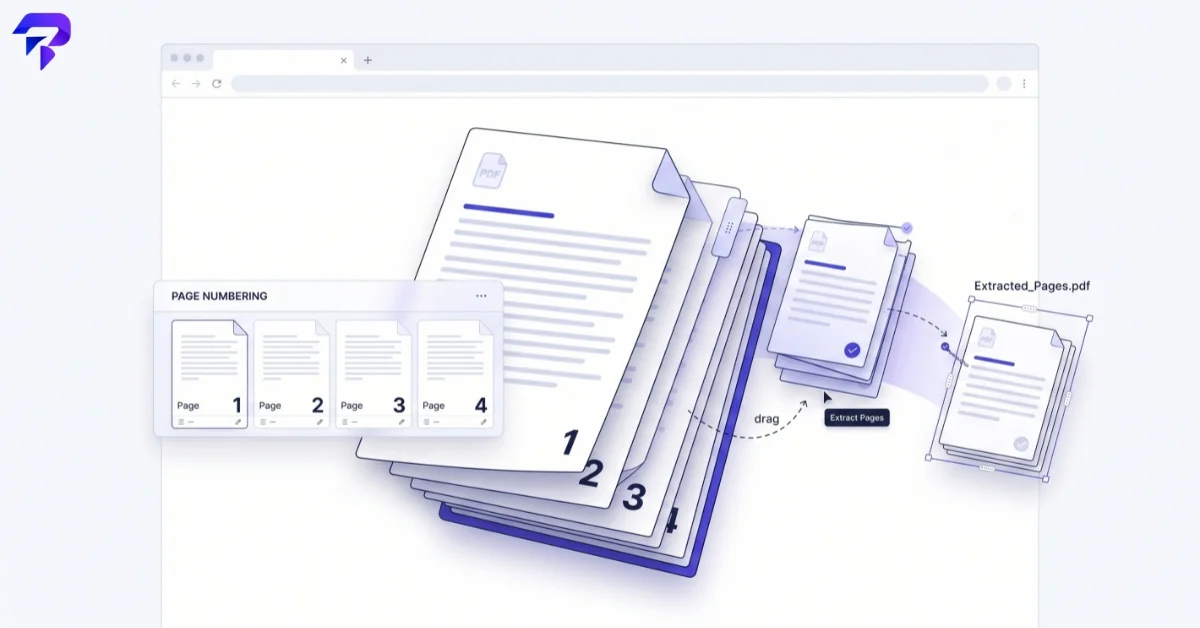
A page-numbering tool works by overlaying a number in a chosen position — bottom-center and bottom-right are the two most common conventions — onto every page of the existing PDF, without touching anything else on the page. The practical decisions worth making before you run it:
- Starting number. If the document has a cover page or table of contents that shouldn’t be numbered “page 1,” start numbering from the first content page instead, or start the count higher so the numbering matches a printed original.
- Format. Plain numbers (“1”, “2”, “3”) suit most documents; “Page 1 of 24” is more common in formal reports and long contracts, since it tells the reader how much is left.
- Position and margin. Bottom-center is the most neutral choice. If the document already has footer content (a company name, a confidentiality notice), bottom-corner placement avoids visual collision.
One thing this kind of tool can’t fix on its own: if the original PDF already has partial numbering baked into the page content (printed on the page before it was scanned, for example), overlaying a second set of numbers will double them up. Check a scanned document for existing printed page numbers before adding new ones.
Extracting specific pages from a PDF
The opposite need comes up just as often — someone sends a 40-page report and you need pages 12 through 15 for a specific reference, or you need to pull one signed page out of a larger packet to send separately. A page-extraction tool creates a new PDF containing only the pages you specify, leaving the original file untouched. This is different from a full PDF split (covered in our merge and split guide), which is more useful when you’re dividing a document into several complete pieces rather than pulling out a specific handful of pages.
Two details are worth getting right:
- Page ranges vs. individual pages. Most tools accept both a range (e.g., “12-15”) and a comma-separated list (e.g., “3, 7, 22”) in the same request, so you can pull a scattered set of pages in one pass rather than extracting one at a time.
- Page order. Extracted pages generally come out in their original document order regardless of the order you list them in — if you need pages reordered, that’s a separate step (a PDF merge tool that lets you specify page order can usually handle that too).
Extraction is non-destructive to the source file by design — the original document isn’t modified or deleted, only copied from. That makes it safe to experiment with page ranges without worrying about damaging the file you started with.
What to check before you run either tool
A couple of things trip people up on both operations, and both are easy to check for in advance:
- Password-protected source files. If the PDF you’re numbering or extracting from is locked with an open password, most browser-based tools can’t read the page content until it’s unlocked first — you’ll need to remove that password (only on a file you’re authorized to modify) before either operation will work.
- Scanned documents without real text. Adding page numbers works fine on a scanned PDF, since the numbers are overlaid as new content regardless of what’s underneath. Extraction also works fine — you’re copying whole pages, images and all, not reading the text on them — but if you eventually need the extracted pages to be searchable, that’s a separate OCR step, not something either tool does on its own.
- File size after extraction. Pulling 5 pages out of a 200-page PDF doesn’t guarantee a small file. If those five pages contain large embedded images or scans, the extracted file can still be sizeable; a compression pass afterward is a quick fix if that matters for emailing it.
Doing both at once
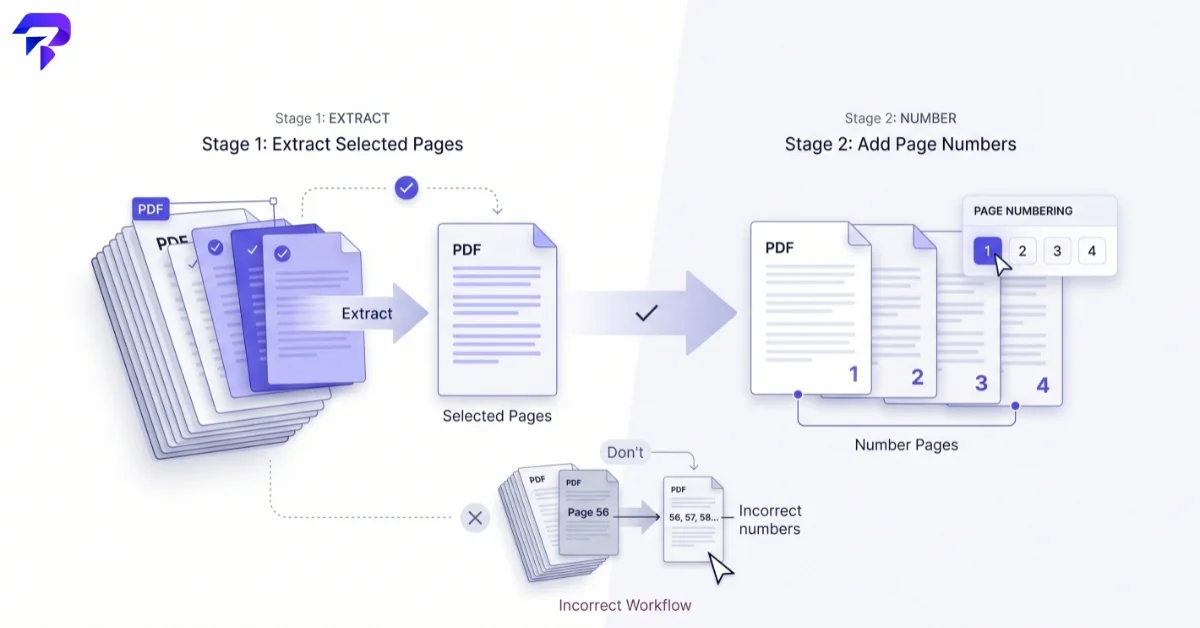
If you need numbered pages and a subset of them, order matters. Extract the pages you need first, then number the resulting (shorter) document — numbering the full original and then extracting a subset will carry over numbers that no longer reflect the new page count (page “12” of the original showing up as the new document’s page 1, for instance). Number last, based on the final page set you’re actually distributing.
Both of these are single-purpose, browser-based operations — no PDF editing software, no account needed for a one-off document, and the file never needs to leave your browser tab to get either job done. If you’re also locking, signing, or watermarking the same document, do that after you’ve finalized the page set — see our breakdown of what PDF passwords, signatures, and watermarks each actually protect.
Frequently Asked Questions
Can I start page numbering from a specific page instead of the first page?
Yes — most page-numbering tools let you set a starting number, so you can skip a cover page or title page and begin the visible count from the first real content page.
Does extracting pages from a PDF change or delete the original file?
No. Extraction creates a new PDF containing only the pages you selected; the source document is read from, not modified, so it’s safe to extract multiple different page ranges from the same original.
Can I add page numbers and extract pages in a single step?
Not in one pass, but the order matters: extract the pages you need first, then run the numbering tool on the resulting shorter document so the numbers match the final page count.
Will page numbers I add to a PDF still show up if I later convert it to Word?
Generally yes, since the numbers become part of the page content itself, but conversion tools can vary in how precisely they preserve overlay positioning — check the converted file if exact placement matters.
Can I extract non-consecutive pages, like pages 3, 9, and 15, in one go?
Yes — most extraction tools accept a comma-separated list alongside ranges, so “3, 9, 15” or “1-5, 12, 20-22” can be pulled out in a single request.
The Bottom Line
Adding page numbers and extracting pages are both single-purpose jobs a browser-based tool handles in under a minute, without needing a full PDF editing suite. Check the output page range and numbering start point before you download, since both are easy to get right the first time and mildly annoying to redo.