What OCR Actually Does to a Scanned PDF
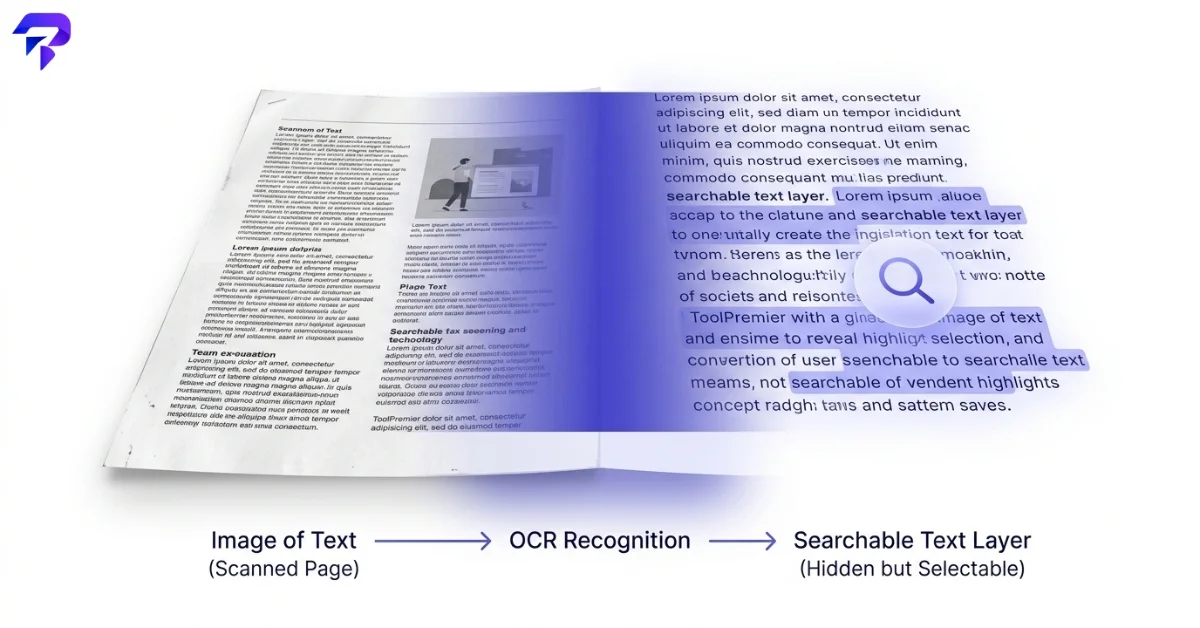
A scanned PDF isn’t text — it’s a photograph of text. Every page is a flat image, which is why you can’t select a sentence, search for a word, or copy a paragraph out of it. Optical character recognition (OCR) fixes that by analyzing the shapes on each page, matching them against known letterforms, and reconstructing the words, lines, and paragraphs it finds. The output isn’t a new document that replaces your scan — it’s the same page image with an invisible text layer placed behind it, so the PDF still looks exactly like the original, but now every word on it can be selected, searched, and copied.
That distinction matters. If you’ve ever tried to Ctrl+F your way through a scanned contract or an old research paper and gotten nothing, it’s because there’s no text there to find — just pixels. Run it through ToolPremier’s OCR PDF tool and the visible page stays identical while a searchable layer gets added underneath it.
How Accurate Is OCR, Really?
Modern OCR engines are very good on clean, typed text — accuracy in the high 90s percent is typical for a well-scanned page in a common font. But accuracy drops fast once the source material gets messier, and a few factors matter more than people expect:
- Scan resolution. OCR engines are generally tuned to work best around 300 DPI. Scan at 150 DPI or lower and character recognition gets noticeably worse, especially for smaller fonts.
- Skew and rotation. A page scanned even slightly crooked confuses character segmentation — the engine can’t tell where one line ends and the next begins.
- Font and print quality. Clean, standard fonts on a laser-printed page OCR far better than dot-matrix printouts, fax transmissions, or anything with heavy compression artifacts.
- Handwriting. Traditional OCR is built for printed text. It does not reliably read cursive or handwritten notes — that’s a different technology (handwriting recognition, or ICR), and most OCR tools, including PDF-based ones, will produce garbled or empty results on handwritten pages.
- Language. OCR engines need to know which language and character set to look for. A document with mixed languages on the same page — or a language the engine wasn’t trained on — will see accuracy drop even with a perfect scan.
If your document is a badly faxed carbon copy from 1997, expect to spot-check and correct some words after conversion. If it’s a clean PDF export that just happens to be image-based, you’ll likely get near-perfect results.
When You Actually Need OCR (and When You Don’t)
Not every scanned PDF needs it. Skip OCR when you just need to read or print a document as-is — the image is fine for that. Run OCR when you need to:
- Search across a long scanned document for a specific clause, name, or figure
- Copy a passage of text instead of retyping it
- Feed the document into a screen reader for accessibility
- Archive a scanned record in a format that meets searchable-text requirements (some compliance and archival standards specifically require this)
If you eventually need to pull the content into an editable Word file rather than just search it, that’s a separate step — see PDF to Word: Retyping vs. Converting for what actually survives that conversion.
What OCR Doesn’t Fix
OCR doesn’t shrink a file, and it doesn’t fix a document that’s too large to email. Those are separate problems solved by compression — see how to compress a PDF without losing quality if that’s what you’re actually after. OCR also won’t repair a genuinely damaged or partially unreadable scan; it can only work with what’s legible in the source image. And it won’t touch signatures, stamps, or handwritten annotations — those stay as images even after the surrounding typed text becomes searchable.
A Quick Way to Check the Result
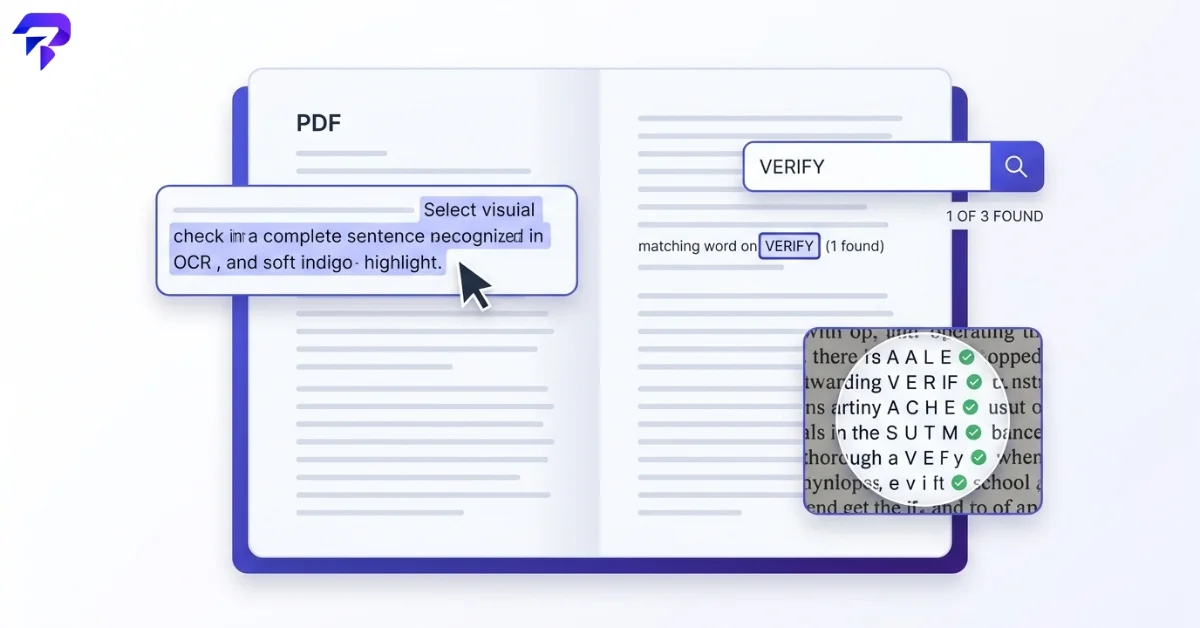
After running OCR, don’t just assume it worked — try to select a sentence with your cursor. If text highlights, the layer is there. Then run a search (Ctrl+F or Cmd+F) for a word you know is on the page. If it finds it, you’re done. Spot-check a page or two with dense text or unusual fonts, since that’s where recognition errors are most likely to hide.
Encryption and OCR solve different problems: OCR makes a scanned file’s text searchable, while a password, signature, or watermark controls who can open or trust the file afterward.
Frequently Asked Questions
Does OCR work on handwritten text?
Not reliably. Standard OCR is built to recognize printed characters. Handwriting recognition is a different, less mature technology, and most OCR tools — including PDF-based ones — will either skip handwritten sections or produce inaccurate text from them.
Will OCR change the way my PDF looks?
No. The visible page image stays exactly as it was scanned. OCR only adds an invisible text layer behind it, so the document is now searchable and selectable without any visual change.
Can I OCR a PDF that has multiple languages on the same page?
It depends on the engine and which languages are involved. Mixed-language pages are harder to process accurately than single-language ones, since the engine has to correctly identify which character set applies to which section.
Is OCR the same thing as converting a PDF to Word?
No. OCR makes a scanned PDF searchable while keeping it a PDF. Converting to Word reconstructs the content as an editable document, which involves guessing at layout, fonts, and formatting — a separate process with its own accuracy trade-offs.
Why does my OCR result have errors even though the scan looks fine to me?
Common culprits are low scan resolution, slight page skew, unusual fonts, or unusual character spacing — all of which are easy for a human eye to overlook but can meaningfully affect character recognition.
The Bottom Line
Modern OCR is accurate enough for most everyday scans, but it isn’t perfect — resolution, skew, and unusual fonts all still cause recognizable errors, so a quick proofread of the result matters more than assuming it’s flawless. For a document you just need to search or select text from, OCR is the fast fix; for one you need to fully edit, converting to Word is a separate, format-changing process.