Quick answer: When you need to edit a PDF in Word, you have two options — retype the whole thing by hand, or run it through a PDF to Word converter. Retyping means you control every keystroke, but you’re rebuilding fonts, tables, spacing, and layout from scratch, and every hour spent retyping is an hour where a typo can slip in unnoticed. A converter reads the PDF’s actual structure — text, table boundaries, image placement, approximate fonts — and rebuilds it as an editable .docx in seconds, though it isn’t perfect on every layout. For a one-page resume or a simple letter, either approach works. For a multi-page contract, a report with tables, or anything with more than a paragraph of body text, retyping stops being a reasonable option pretty quickly.
Why this decision comes up in the first place
PDF is a presentation format. It was built to make a document look the same on every screen and printer, not to make that document easy to edit later. So when a PDF lands in your inbox — a scanned contract, an old resume template, a report you need to update with this quarter’s numbers — there’s no “edit” button. You either recreate the content in a program that does support editing, or you find a tool that converts the file for you.
Most people default to copy-paste first. It seems like the obvious shortcut: select the text in the PDF, paste it into a blank Word document, and clean it up. The problem is that copy-paste from a PDF rarely gives you clean text — it gives you a rough approximation of the text with the formatting stripped out, which is functionally the same starting point as retyping from scratch, just with more hidden line breaks to hunt down.
What actually happens when you retype a PDF into Word
Retyping sounds simple in theory: read the PDF, type what you see into a new Word document. In practice, several things go wrong at once.
- Fonts get approximated, not matched. Unless you know the exact typeface used in the original PDF, you’re picking the closest thing Word offers — which is rarely the same font, and never has identical spacing or kerning.
- Tables have to be rebuilt cell by cell. A PDF table is really just text positioned at specific coordinates on the page — there’s no underlying table structure to copy. You have to manually insert a table in Word, count the columns and rows, and retype every cell while trying to match the original’s alignment.
- Page layout resets to Word’s defaults. Margins, column breaks, and any two-column or three-column layout in the source document have to be manually recreated with section breaks and column settings — a fiddly process even for someone comfortable with Word’s layout tools.
- Bullet and numbered lists lose their exact formatting. Custom bullet characters, indent levels, and numbering styles (i, ii, iii vs. 1, 2, 3) usually get replaced with whatever Word’s default list style happens to be.
- Headers, footers, and page numbers are easy to miss entirely. They’re not part of the main body text, so when you’re focused on retyping paragraphs, it’s common to forget the running header or the footer with the document’s file reference number until a final read-through catches it.
- Images have to be extracted separately and re-inserted. A logo, chart, or signature image in the PDF isn’t something you can retype — you need a screenshot or a separate export, then manual repositioning to match where it sat on the original page.
- Time cost scales with document length, not complexity. A one-page letter might take fifteen minutes to retype. A ten-page report with tables and a two-column layout can easily take a couple of hours, and that estimate only holds if nothing goes wrong.
- Every manually retyped line is a chance for a transcription error. Numbers, dates, names, and figures are exactly the kind of details that get mistyped when you’re moving fast through a long document, and they’re also the details that matter most in a contract or a report.
What actually happens when you use a PDF to Word converter
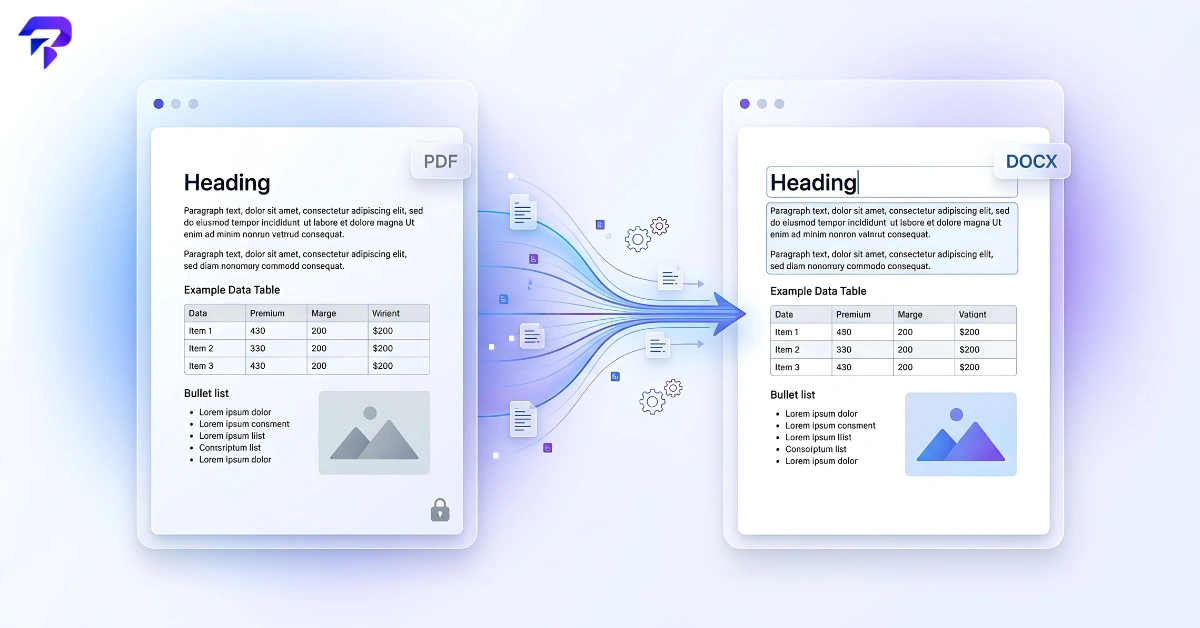
A dedicated converter takes a different approach. Instead of asking a person to visually interpret the PDF and re-create it, it reads the PDF’s internal structure — the text objects, the table grid, the image placements, the font references — and maps that structure onto Word’s own formatting system.
- Text-based PDFs convert with their structure mostly intact. Paragraphs stay as paragraphs, headings stay recognizable as headings, and the flow of the document doesn’t need to be manually reconstructed.
- Tables are rebuilt as actual Word tables, not just aligned text. Because the converter can detect the grid the original table was built on, it recreates rows and columns as an editable table object rather than a wall of tab-separated text.
- Fonts are matched or substituted automatically. The converter doesn’t guess by eye — it reads the font metadata embedded in the PDF and either uses the same font (if it’s a common one) or substitutes the closest available match, saving you from doing that comparison manually.
- Images stay positioned roughly where they were. Logos, photos, and diagrams get extracted and placed inline or wrapped, close to their original position, instead of needing to be re-inserted by hand.
- Bullet lists and numbering are recognized as list structures. Rather than typing each bullet manually, the converter identifies the list formatting already present in the PDF and reproduces it as an actual Word list.
- Headers and footers carry over instead of getting overlooked. Because the converter processes the entire page, running headers, footers, and page numbers come across without needing a separate step to remember them.
- Time cost is roughly flat regardless of document length. A one-page resume and a twenty-page report take about the same amount of hands-on time from you — upload, convert, download — because the heavy lifting isn’t manual.
None of this means conversion is flawless. Complex multi-column layouts, unusual fonts, or documents built from scanned images rather than actual text are harder for any converter to interpret cleanly, and you should expect to do some cleanup — adjusting spacing, fixing a stray line break, nudging an image back into place. The difference is that you’re starting from a document that’s 90% there instead of a blank page.
Retyping vs. converting: a side-by-side comparison

| Element | Manual retyping | PDF to Word converter |
|---|---|---|
| Fonts | Manually guessed and selected from Word’s font list; rarely matches exactly | Read from the PDF’s font data and matched or substituted automatically |
| Tables | Rebuilt cell by cell using Word’s table tool | Detected from the original grid and recreated as an editable table |
| Images | Extracted separately (screenshot or export) and manually repositioned | Extracted and placed automatically near their original position |
| Page layout / columns | Margins and columns recreated manually with section breaks | Layout structure carried over from the source document |
| Bullet / numbered lists | Retyped using Word’s default list styles, often losing custom formatting | Recognized as list structures and reproduced with original formatting |
| Headers / footers | Easy to forget; must be added as a separate step | Carried over automatically along with the rest of the page |
| Time cost | Scales with document length — minutes for a one-pager, hours for a long report | Roughly flat — upload, convert, download, regardless of page count |
| Error risk | Higher — every retyped word, number, or date is a chance for a typo | Lower for text accuracy, though layout cleanup is often still needed |
When retyping still makes sense
Retyping isn’t always the wrong call. If you’re dealing with a single short paragraph, a form letter with almost no formatting, or a document where you only need to reference the wording rather than preserve the exact layout, typing it out yourself can genuinely be faster than uploading a file and cleaning up the result. Retyping also gives you a chance to rewrite as you go, which is useful if you’re using an old PDF as a rough starting point rather than something you need to reproduce faithfully.
Where retyping stops making sense is anywhere the original layout matters — a resume where the formatting is part of what makes it scannable, a contract where table structure and section numbering need to match exactly, or a report where charts and images are load-bearing parts of the content.
Editing a PDF as a Word document, step by step
If your goal is to edit a PDF as a Word document — update a date, fix a clause, add a paragraph — converting first is almost always the faster path. The general workflow looks like this:
- Upload the PDF to a PDF to Word Converter.
- Download the resulting .docx file and open it in Word (or any word processor that reads .docx).
- Review tables, images, and headers for anything that needs a manual nudge — this is normal, especially with complex layouts.
- Make your actual edits — the part you opened Word for in the first place.
- If the final version needs to go back out as a PDF, run it through a Word to PDF Converter to lock the formatting back down for sharing.
If the file you’re working with is large — a scanned multi-page contract, for instance — it’s also worth knowing that a PDF Compressor exists for the opposite problem: shrinking a bulky PDF before you email it or upload it somewhere with a file size limit.
Why it matters that conversion happens in your browser
A resume has your address and phone number on it. A contract might have salary figures, client names, or terms you’d rather not upload to an unknown server. When you’re deciding where to run a PDF to Word converter, it’s worth checking whether the tool actually processes files in your browser or uploads them to a server somewhere for processing. ToolPremier’s converter runs entirely client-side — the conversion happens on your own device, and the file never leaves your browser to sit on a server you don’t control.
FAQs
Is it free to convert a PDF to Word online?
Yes — ToolPremier’s PDF to Word Converter is free to use, with no account or software installation required.
Will a converted Word document look exactly like the original PDF?
For straightforward, text-based PDFs — a resume, a letter, a simple report — the layout typically carries over closely. For complex multi-column documents, unusual fonts, or scanned image-based PDFs, expect some manual cleanup after conversion, since these layouts are harder for any converter to interpret precisely.
Can I convert a scanned PDF to Word?
A scanned PDF is really just an image of a page, not actual text, so a standard converter will have a harder time extracting editable content from it compared to a PDF that was created directly from a text document.
Why does retyping a PDF sometimes seem safer than converting?
It feels safer because you’re in control of every word as you type it. But that control comes at the cost of time and introduces its own risk — a mistyped number or missed line is just as much of an error as a formatting quirk from a converter, and it’s arguably easier to miss since you assume you typed it correctly.
What’s the difference between copy-pasting and using a converter?
Copy-pasting grabs the raw text from the PDF but usually strips out or garbles the formatting — tables collapse into run-on lines, spacing gets inconsistent, and line breaks land in strange places. A dedicated converter reads the document’s actual structure, not just the visible text, so tables, lists, and layout are rebuilt as Word elements instead of loose text.
Do I need Microsoft Word installed to open a converted file?
No — a .docx file can be opened in Word, but also in free alternatives like Google Docs or LibreOffice Writer, since .docx is a widely supported format.
What if I need to send the edited document back as a PDF?
Once you’ve made your edits in Word, you can convert it back using a Word to PDF Converter to restore a fixed, shareable PDF format.
The bottom line
Retyping a PDF into Word gives you full control, but it charges you for that control in time and in the accumulated risk of small transcription errors across every page. A PDF to Word converter starts you off with the document’s actual structure already in place — tables as tables, lists as lists, images roughly where they belong — so what’s left is the editing you actually wanted to do, not the reconstruction work you didn’t. For anything longer than a paragraph or with a table, chart, or specific layout worth preserving, converting first is the faster and more reliable route. Try the PDF to Word Converter on your next document and skip the retyping.