

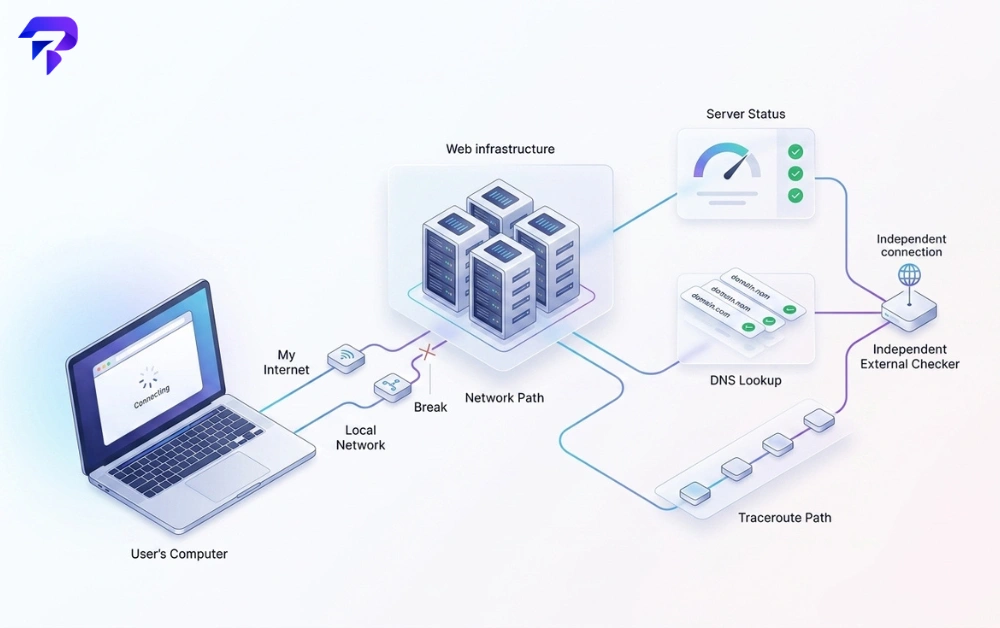
A page that won’t load looks the same whether the server crashed, your DNS is stale, or your Wi-Fi dropped. The fix depends entirely on which one it is, so the goal is to find out in about a minute before trying anything else.
Check If a Website Is Down Right Now (60-Second Method)
Step 1: Test it outside your own DNS and browser
Paste the URL into the Server Status Checker. It resolves the domain through public DNS resolvers rather than your device’s cache, then tests whether the server responds, showing the resolved IP address, response time and status. If it responds there, the site is up and the problem is between you and it.
Step 2: Test from multiple locations and networks
Ping Domain from Multiple Locations checks how the domain resolves and responds through resolvers in different regions, which helps spot an outage or DNS change that only affects some areas. Then load the site on a second network yourself: switch your phone from Wi-Fi to mobile data, or ask someone elsewhere to try. If you’re checking several sites or pages at once, Ping Multiple URLs tests them together.
Step 3: Read the error your browser shows
The exact wording or status code tells you a lot about where the failure is. Use the table below to decode it.
What the Error Message Tells You
HTTP status meanings below follow the definitions in MDN’s HTTP response status code reference. For any other code, look it up with the HTTP Status Code Lookup.
| What you see | What it means | Down for everyone? | What to do |
|---|---|---|---|
| 404 Not Found | The server is running but can’t find that page. | No, the site is up. | Check the URL or go to the homepage. |
| 500 Internal Server Error | The server hit an unexpected error handling the request. | Usually yes. | Wait and retry; it’s the site’s problem. |
| 502 Bad Gateway | A gateway or proxy got an invalid response from the server behind it. | Usually yes. | Wait a few minutes and retry. |
| 503 Service Unavailable | The server can’t handle the request right now, often due to maintenance or overload. | Usually yes. | Wait; check the site’s status page or social accounts. |
| 504 Gateway Timeout | A gateway or proxy didn’t get a response from the server behind it in time. | Usually yes. | Wait and retry; run Step 1 to confirm. |
| “Server IP address could not be found” / DNS_PROBE_FINISHED_NXDOMAIN | The domain name didn’t resolve to an IP address. | Sometimes. Could be your DNS or the domain’s records. | Run Step 1. If it resolves there, flush your DNS (below). |
| ERR_CONNECTION_TIMED_OUT | Nothing answered before your browser gave up. | Not necessarily. | Try another network; run a traceroute. |
| Certificate or “Your connection is not private” errors | The browser couldn’t verify the site’s SSL/TLS certificate. | Sometimes. An expired certificate affects everyone. | Check your device’s date and time; if correct, the site owner must fix it. |
It’s Down Only for You: How to Fix It
Try another network or device
If the site loads on mobile data but not on Wi-Fi, the problem is your home network, router or fixed-line ISP. Restart the router first. If it loads on another device on the same Wi-Fi, the problem is the first device.
Open the site in a private window or clear the cache
A private or incognito window loads the site without your cookies, cached files or most extensions. If it works there, clear the browser cache and cookies for that site, or disable extensions one at a time to find the one blocking it.
Flush your DNS cache
Your device stores recent DNS lookups. If a site recently changed servers, a stale entry can point you at an old address. Clear it with:
- Windows: open Command Prompt and run
ipconfig /flushdns - macOS: open Terminal and run
sudo killall -HUP mDNSResponder(the command Apple documents for current macOS versions; enter your password when asked) - Chrome: go to
chrome://net-internals/#dnsand click “Clear host cache”
Then reload the site. Browser cache and DNS cache are separate, so clearing one doesn’t clear the other.
Check your IP and ISP
A VPN, proxy or corporate network can route you somewhere unexpected or block a site. Check what your IP address is to confirm which connection you’re actually using; our guide to what your IP address reveals explains what the result means. If the site still fails only on one ISP, run Traceroute. A trace that stops at a hop inside your ISP’s network points to a routing problem you can report to the ISP with the trace as evidence.
If the site loads but is just very slow, that’s a different problem. A website speed test shows whether the page itself is slow.
It’s Down for Everyone: What Now?
If the site fails in Step 1, on other networks and for other people, nothing on your side will fix it. Check the site’s official status page or social media accounts for an announcement, wait a few minutes and retry, and look for a cached copy if you only need to read something. If you run the site, check your hosting dashboard, server logs, recent deployments and whether the domain or SSL certificate has expired.
When DNS Is the Culprit
DNS translates a domain name into the IP address your browser connects to. When a site owner moves servers or edits DNS records, the change spreads through resolvers gradually. Each resolver keeps the old record until its TTL (time to live) expires, so it can take from minutes to around 48 hours to settle everywhere. During that window, the site can work for one person and fail for another.
The DNS Records Checker shows a domain’s current A, AAAA, MX and other records, and the DNS Propagation Checker compares how different resolvers answer. For the full explanation, see DNS propagation explained.
Frequently Asked Questions
Why does a website work on mobile data but not on Wi-Fi?
Mobile data uses a completely different network path, so this points to your home network rather than the website: usually the router, a DNS setting on the Wi-Fi network, or a problem with your fixed-line ISP. Restart the router, then flush your DNS cache.
What does a 503 error mean?
503 Service Unavailable means the server is reachable but can’t handle the request right now, commonly because of maintenance or overload. It is a server-side problem, so it usually affects everyone and clears when the site recovers.
Can a website be down in one country only?
Yes. Regional outages at a hosting or CDN provider, DNS changes that haven’t propagated everywhere, routing problems between networks, and deliberate blocking by a network or government can all make a site unreachable in one region while it works elsewhere.
Can clearing my browser cache fix a site that won’t load?
Sometimes, but it is often the wrong fix. The browser cache stores page files, not DNS lookups. Try a private window first; if the problem is DNS-related, flush your operating system’s DNS cache instead.
What does it mean if traceroute stops at a certain hop?
Packets aren’t getting past that point in the network. If the hop is inside your ISP’s network, the problem is on their side. If it is close to the destination, the problem is nearer the site’s hosting or network provider.
The Bottom Line
Don’t guess from a single error message. Check the site through a status checker that bypasses your DNS cache, try a second network, and read the error code: a site that responds elsewhere means the fix is on your side (private window, DNS flush, router or ISP), while 5xx errors on every network mean the site itself is down. The Server Status Checker is the fastest first step.