Why GIFs Get So Big So Fast
GIF is a much older format than the video and image formats built for photographic content. Its defining limitation, set in the original specification, is that each frame can use at most 256 colors, drawn from an indexed palette rather than full 24-bit color. A modern photo or video frame typically uses millions of distinct colors; squeezing that down to 256 forces the encoder to approximate, which is why GIFs of photographic content often show visible banding or dithering, especially in skies, skin tones, and gradients.
Animation makes the size problem worse, not better. A GIF is really a sequence of nearly-complete images stored one after another (with some optimization for unchanged pixels between frames), each still bound by the 256-color-per-frame limit. Where a video codec like H.264 predicts each frame from the ones around it and only stores the differences efficiently, GIF’s compression — Lempel-Ziv-Welch (LZW), the same lossless method used since the 1980s — wasn’t designed with video-style motion compensation in mind. More frames and more motion mean more data, with none of the tricks a real video codec uses to keep that in check.
The Three Levers That Actually Control File Size
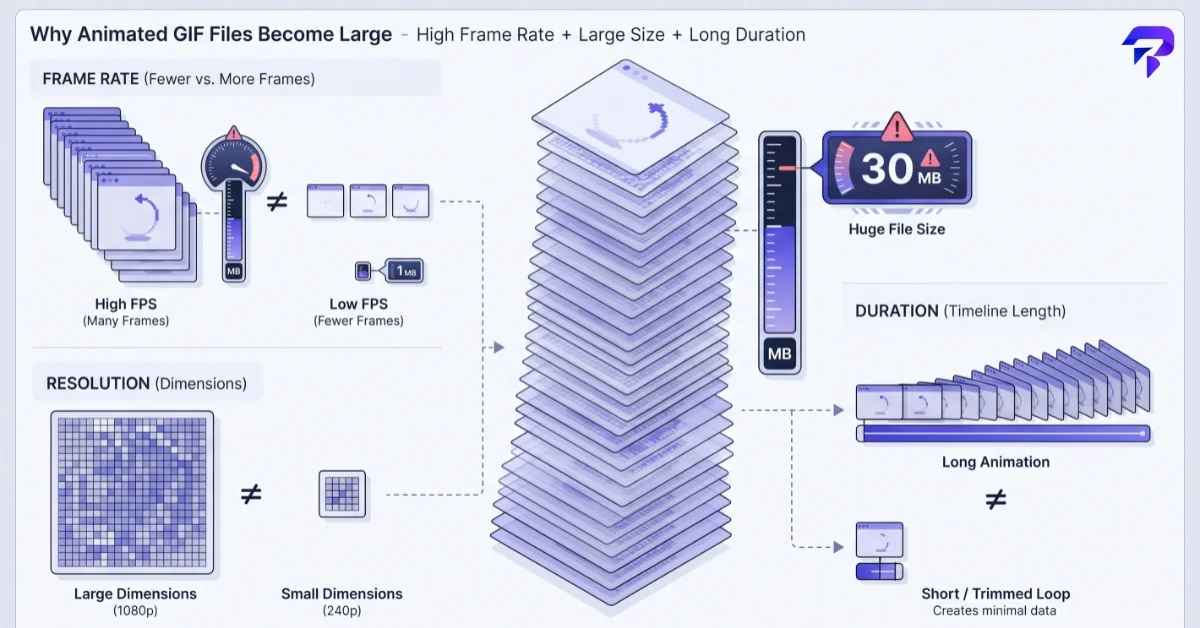
If a GIF export comes out too large, these are the settings that move the needle, in order of impact:
- Frame rate. Dropping from 24–30fps to 10–15fps is usually invisible for casual motion (reactions, short clips, screen recordings) and roughly halves the frame count — and therefore a large chunk of the file size.
- Dimensions. A GIF sized for a chat app or a blog post rarely needs to be full HD. Cutting the width in half cuts the pixel count, and therefore the data per frame, to roughly a quarter.
- Duration. Every additional second of source clip adds a proportional number of frames. Trimming a 10-second clip to the 3 seconds that actually matter is usually the single biggest size reduction available.
Color count and dithering settings (when a tool exposes them) matter less than the three above for most everyday GIFs, but reducing the palette further, or turning off dithering for flat-color content like screen recordings or text, can help on top of them.
GIF vs. WebP vs. MP4 for the Same Clip
GIF’s one real advantage is universal compatibility: it plays automatically, with no user interaction, in essentially every browser, chat app, and messaging platform without needing a video player. That’s also the whole reason it’s still in use, decades after better alternatives arrived.
An animated WebP supports full 24-bit color and much better compression than GIF, and modern browsers render it the same way — auto-playing, no controls — but not every platform (older forum software, some email clients, certain chat apps) accepts it the same way.
An MP4 or WebM video clip set to autoplay and loop will almost always be a smaller file with better color quality than an equivalent GIF, but it requires a video-capable embed rather than a plain image tag, which some platforms (old-school forums, certain CMS editors, some email clients) don’t support for inline content.
In practice: use GIF when you need guaranteed universal playback with zero setup (pasting into a chat, embedding in a place you don’t control the HTML), and use WebP or a native video embed when you control the display and want a meaningfully smaller file at better quality.
Images to GIF vs. Video to GIF
Turning a sequence of still images into a GIF (a slideshow, a stop-motion sequence, a before/after comparison) is more predictable, since you control exactly what’s in each frame and how long it displays. Turning a video into a GIF requires the tool to sample frames from the source at your chosen rate, which is where frame rate and trim length become the main things worth adjusting before export, per the sizing guidance above.
Making a GIF With ToolPremier’s GIF Maker
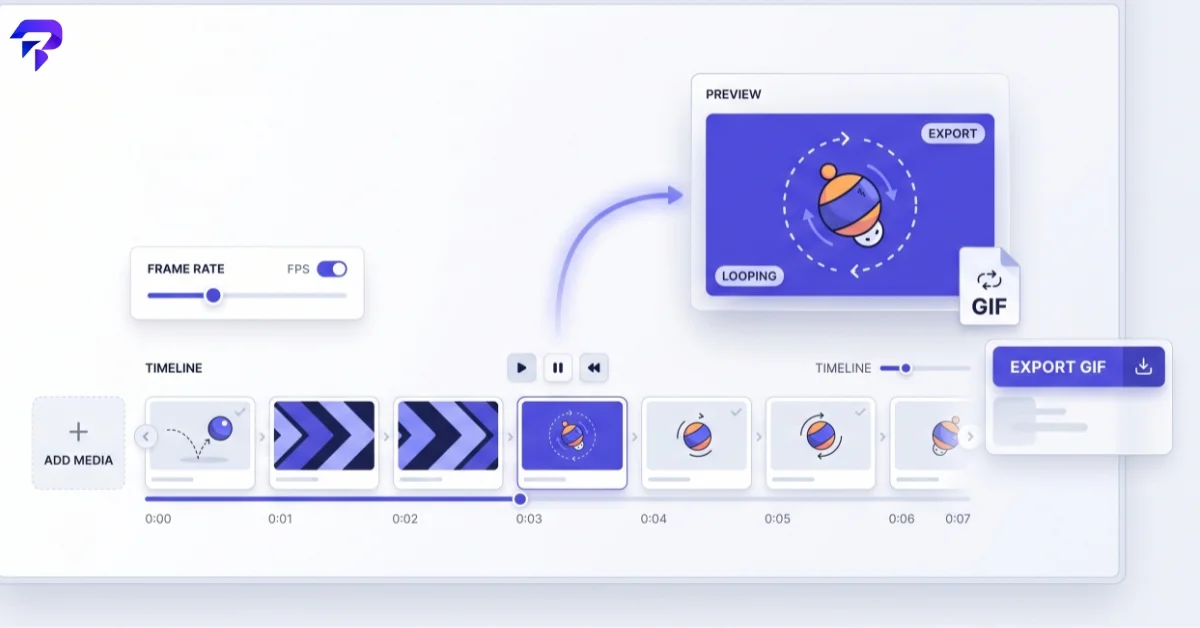
ToolPremier’s GIF Maker converts either images or short video clips into a GIF directly in your browser — upload your source, set frame rate and dimensions, trim the range if you’re working from video, and export. Nothing is uploaded to a server in the process. If the finished GIF is still too large for where you’re posting it, running it through the Image Compressor won’t help much (GIF compression works differently from JPEG/PNG compression), so the frame rate, dimension, and trim adjustments above are the real fix. For a source clip that needs trimming or format conversion first, the Video Compressor can shrink it before you bring it into the GIF Maker.
Frequently Asked Questions
Why does my GIF look worse than the original video?
This is the 256-color palette limitation described above — it’s inherent to the format, not a sign the tool did something wrong. Photographic content with smooth gradients (skies, skin tones, shadows) shows this most, since 256 colors can’t represent a smooth gradient without visible banding or dithering.
What’s the maximum size a GIF can be?
The GIF specification technically allows very large dimensions, but practical limits come from where you’re posting it — most messaging apps and social platforms cap upload size well below what a long, high-resolution GIF would produce, which is exactly why frame rate, dimensions, and trim length matter so much.
Can I make a GIF without losing the audio from my video?
No — the GIF format has no audio track at all, by design. If audio matters, an MP4/WebM video clip is the only option that preserves it.
Should I use GIF or a short autoplay video for social media?
If you control the embed (your own site, a platform that supports native video), a short autoplay video clip will look better and load faster at the same visual quality. Use GIF specifically when you need it to work as a plain image with no video player — pasted into a chat, embedded somewhere you don’t control the HTML, or used in a context where video isn’t supported at all.
Why does a longer GIF sometimes fail to upload?
Most platforms enforce a hard file size cap. Since GIF file size scales directly with frame count and dimensions, a clip that seemed short can still produce a file over the limit if it’s high frame rate or full resolution — trimming duration and lowering frame rate are the fastest ways to get back under it.
The Bottom Line
GIF file size balloons fast because the format itself was never built for video-quality color or compression — frame rate, dimensions, and length are the three levers that actually control it. Trim the clip, lower the frame rate, and resize before exporting if the file needs to stay under a platform’s upload limit.